
SuperEx Guide: SuperEx Web3 Wallet User Guide(XII)

@2x-1024x576.png)
I have to admit—I spoke too soon. In SuperEx Guide: SuperEx Web3 Wallet User Guide (XI), I said it would be the final installment of the SuperEx Web3 Wallet Guide. But after reviewing the entire SuperEx Guide: SuperEx Web3 Wallet User Guide series, I realized there are still third important topics we haven’t covered.
So, this is actually the third-to-last article in the SuperEx Guide: SuperEx Web3 Wallet User Guide series. If you’re involved in the crypto market, you definitely won’t want to miss it.
- Cick to register SuperEx
- Cick to downoad the SuperEx APP
- Cick to enter SuperEx CMC
- Cick to enter SuperEx DAO Academy — Space
@2x-scaled.png)
Super Wallet External Authorization User Guide
The “Super Wallet External Authorization User Guide” includes three sections: “Wallet Login”, “Wallet Authorization”, and “Deposite Methods”.
Wallet Login:
Step 1: On the login method, choose “Wallet Login”.
On the login page, select “Web3 Wallet Login”.
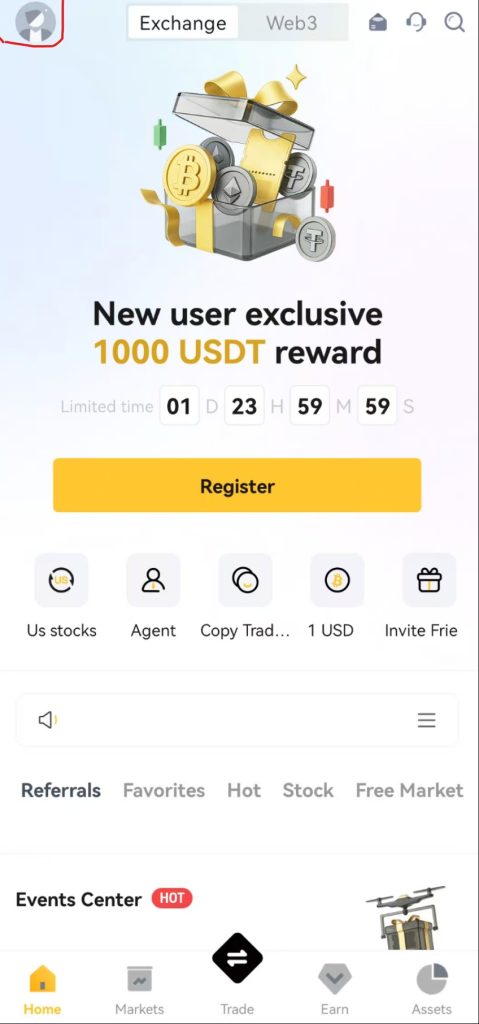
Step 2: Choose your HD Wallet or the cryptocurrency network you need. Currently, two networks are supported: “ERC-20” and “BEP-20”.
Step 3: Select the HD Wallet you want to connect to. There are two connection methods available: “Mobile Wallet” and “QR Code Scan”. Currently supported wallets are: Super Wallet, BitKeep, imToken, Metaask, TokenPocket, and Trust Wallet.
3.1 If the HD Wallet app and the SuperEx app are on the same phone, directly choose “Mobile Wallet” and select the HD Wallet you wish to connect from the available six wallets.
3.2 If the HD Wallet and the SuperEx app are not on the same phone, select the “QR Code” connection method. Use the HD Wallet’s scanning feature to scan the displayed QR code for login.
Step 4: When the page displays “Connection request has been approved”, it means the wallet connection is successful, and you can proceed to the next step “Wallet Authorization”.





Responses